Manage Locations
Overview
 How to Navigate to this Screen
Hover over on the User Profile drop-down in the top right of any screen, and then select Locations.
Why Use this Screen
Perform administrative tasks for the company's locations:
- Enable or disable a location's TraceLink access.
- Specify a location's identifier and Info Exchange profile so that the location can exchange messages.
 This screen displays only locations entered in Company Master Data with a of Active.
Search Criteria
Search Fields
- – Filters the results to locations that contain the entered in the , , or fields.
- – Indicates whether the location can participate in TraceLink applications.
- All
- Visible – Only locations that can participate in TraceLink applications return in the results table.
- Not Visible – Only locations that cannot participate in TraceLink applications return in the results table.
Results Table
Static Information
- Location Name – Name of the location.
- ID – Unique identifier of the location.
- Address – Street address of the location.
Optional Information
- – Indicates whether the location can participate in TraceLink applications.
 After adding the location in Company Master Data, the location must be allowed to participate in TraceLink applications by selecting the Can Participate in TraceLink applications checkbox. If this chekbox is not selected, Managers will not be able to link to the location in Management.
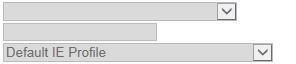
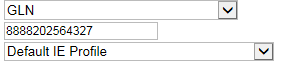
 - – The default identifier used when the location sends messages.
- – Indicates whether the location uses the default Info Exchange profile set in Configure Info Exchange Profiles or another Info Exchange profile.
Example
| Location Name Location ID |
Address | Visibility | Default Outbound Identifier Alternate Info Exchange Profile |
|---|---|---|---|
|
Kendall Dalian COMPANYSITEID 100231-21 |
No.100 Daqing Road
Dalian, CN 116600 CN |
 Can participate in TraceLink applications Can participate in TraceLink applications |
|
|
Kendall India
GCP (GS1 Global Company Prefix) 8888202 |
31 Patel Estate Road
Jogeshwari (West), MH 400 102 IN |
 Can participate in TraceLink applications Can participate in TraceLink applications |
|
Available Actions
Search Locations
- Enter any in the text field.
- Select the from the drop-down.
- Select .
The results display in the table.
Add or Edit a Location's Default Outbound Identifier
- Select a from the first drop-down in the fourth column of the results table.
- Enter the unique identifier value in the text field below the drop-down.
-
Select .
The screen reloads, and TraceLink saves the updated location settings.
Edit a Location's Alternate Info Exchange Profile
- Select an from the bottom drop-down in the Actions column of the results table.
-
Select .
The screen reloads, and TraceLink saves the updated location settings.
Change the Visibility of a Location
- Select or deselect the Can participate in TraceLink applications checkbox in the column.
-
Select .
The screen reloads, and the updated locations settings are saved.
Export Search Results to a CSV File
- Select above the results table.
The file downloads.
See Export a CSV File to Excel in Troubleshooting.


